
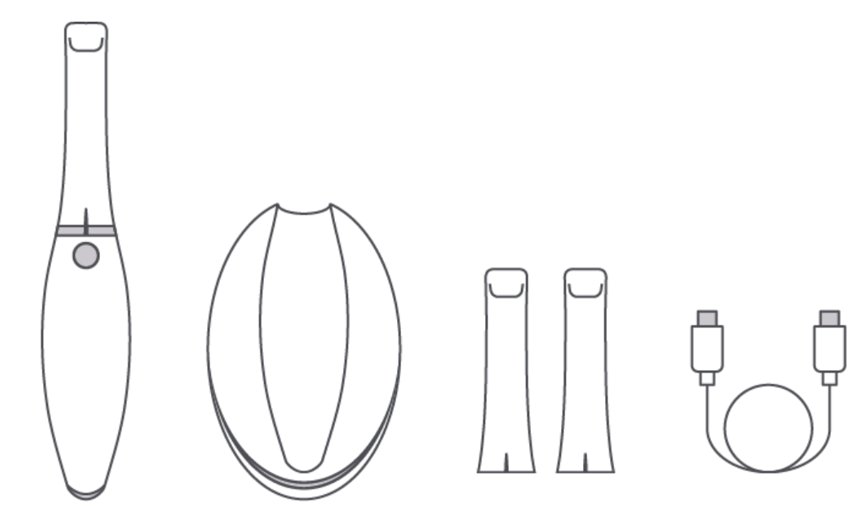
- OVO3 intraoral scanner (one tip pre-attached)
- 2 additional scanning tips
- Proprietary USB-C to USB-C cable
- OVO3 cradle
- Quickstart Guide and Scan&Tell information (in the Welcome envelope)
Step 3
Scanner Installation
OVO3 and AVA follow the same overall flow: unbox, plug in, install software, verify integrity.
OVO3 & AVA — Box Contents
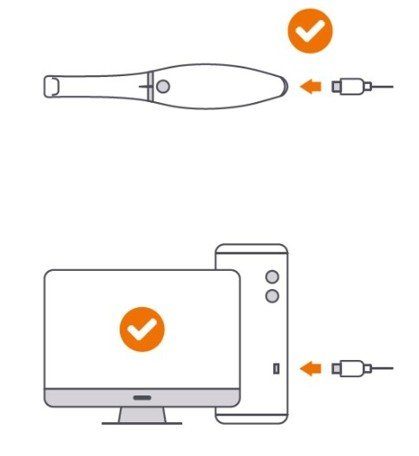
OVO3 & AVA — Plugging the Scanner
Connect the USB-C cable to the scanner, then to a USB-C port on the computer. Wait for both to show ready before opening 3discClinic.
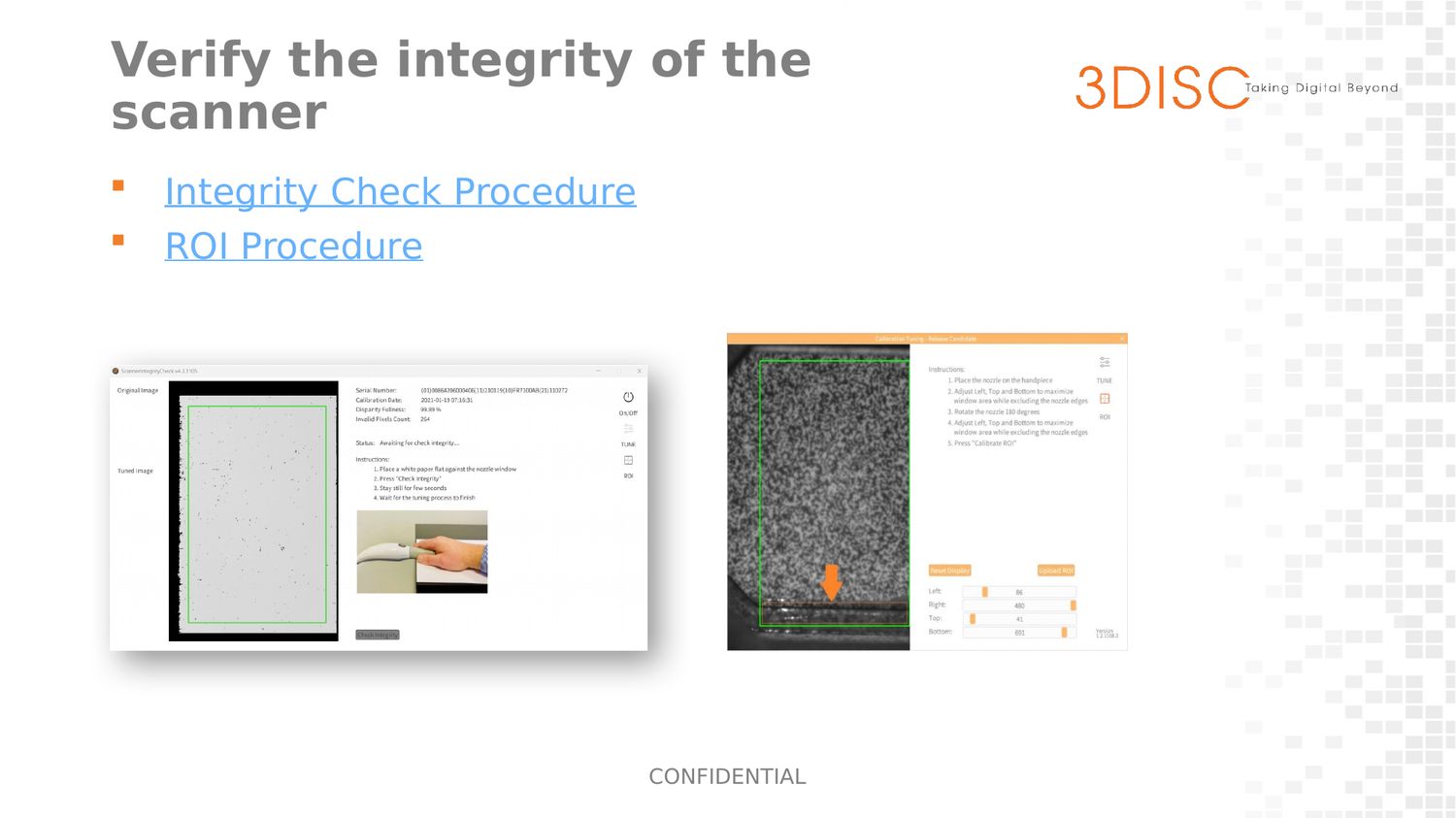
Verify Scanner Integrity
Before scanning a patient for the first time, run the Integrity Check to confirm the scanner is calibrated correctly.
Software Installation & First Launch
3discClinic is pre-installed on the computer prior to shipping — launch it from the desktop icon to get started.
If the software is not present, or the computer was purchased independently:
- Download the software from the 3DISC partner site
- Install 3discClinic
3DiscClinic
Remote Support
What Is the QuickSupport Icon For?
QuickSupport (TeamViewer) is the desktop icon a member of the 3DISC support team will ask for during a remote session — opening it generates a one-time ID and password that let a support engineer connect to the computer directly to diagnose or fix an issue. It is not needed for everyday use; keep it on the desktop for when support asks for it.
Keeping 3discClinic Up to Date
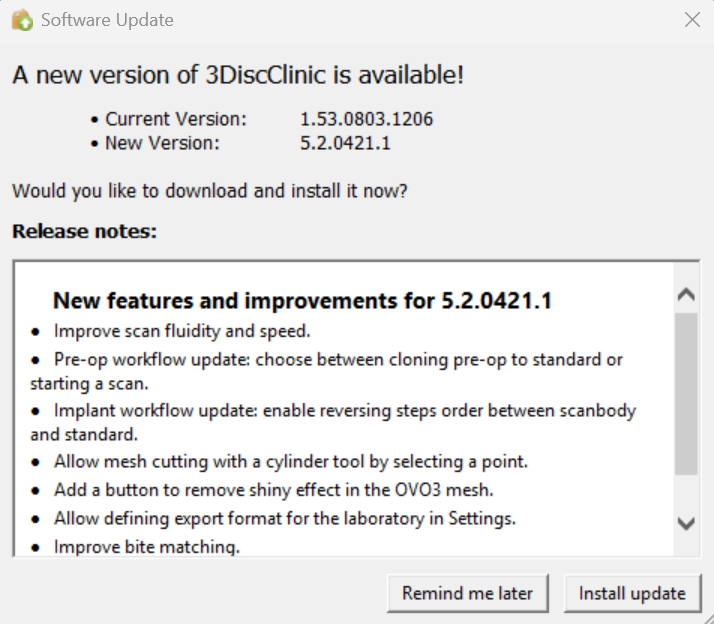
3discClinic checks for updates automatically. Whenever a new version is available, the prompt below appears on launch, showing the current and new version numbers along with release notes for what has changed.
From there, two options:
- Install update — downloads and installs the new version right away
- Remind me later — dismisses the prompt; it will reappear the next time the software opens
Installing promptly keeps the software aligned with the latest scanning improvements and bug fixes.
How to Update the NVIDIA Driver
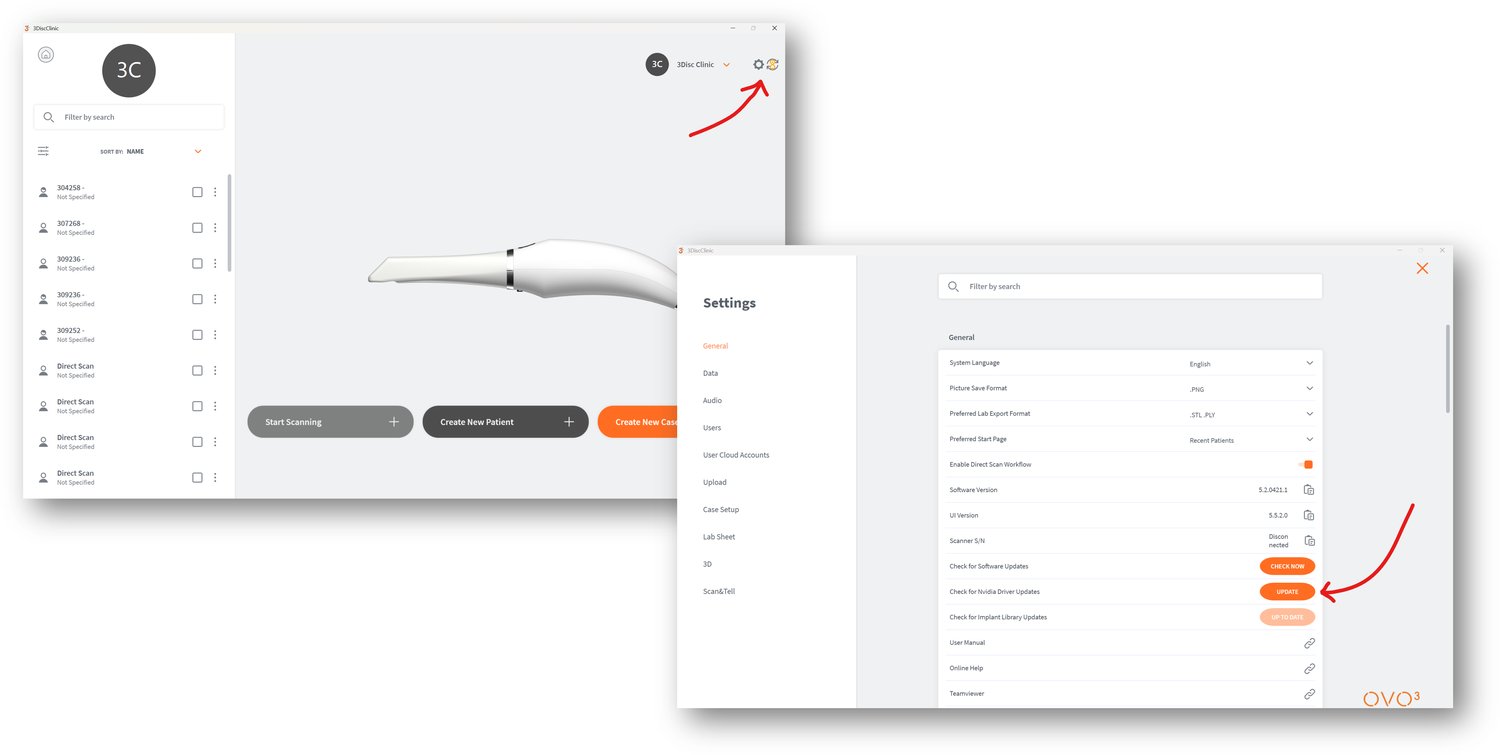
From 3discClinic: open Settings (gear icon, top right) and go to General.
- Open the settings panel from the gear icon (step 1)
- Under Check for Nvidia Driver Updates, click Update (step 2)
3discClinic Settings
Default settings work for most dentists. Two options are worth confirming during onboarding, in Case Setup: the Teeth Numbering System and the Shade System. Both conventions vary from country to country, so they should be set to match the dentist's country rather than left on the default.
More on 3discClinic Settings — Knowledge Base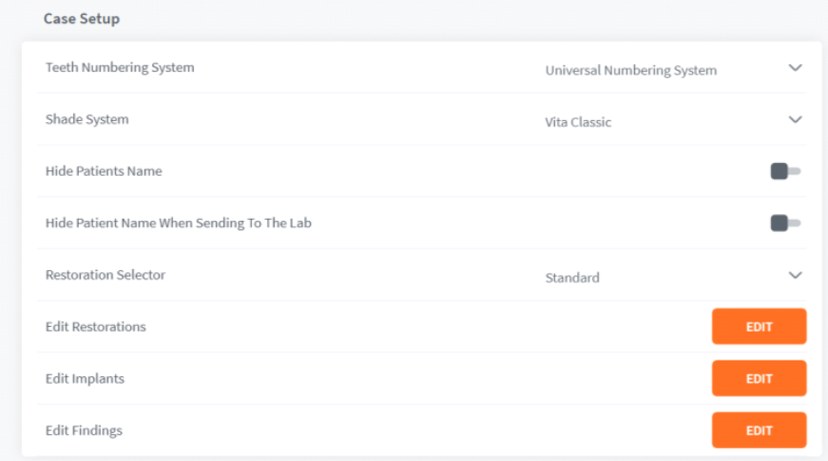
Managing Patients & Creating a Case
Watch the video walkthrough on the Videos page, or follow the written step-by-step versions: